
How to Record Face and Screen Together?
I tried them all and picked only the best ones.

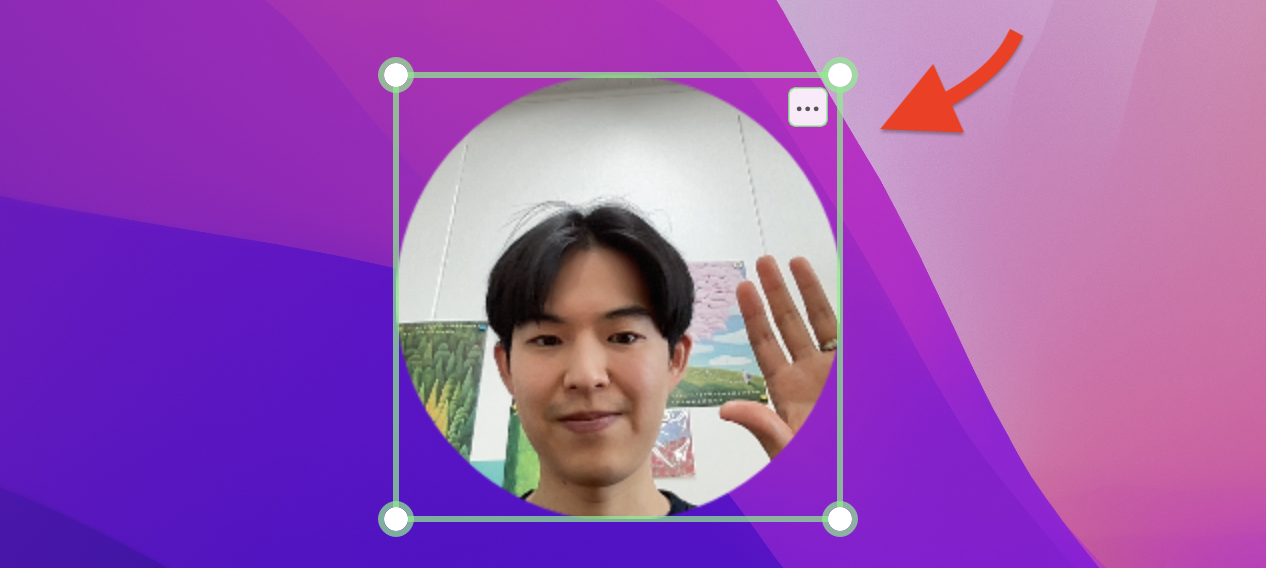
Showing your face builds trust and increases engagement.
Face-and-screen recording is no longer optional—it’s the default.
So which tool gets you there fastest?
Here's the comparison for the three most promising methods.

OBS was originally built for Twitch streamers. It lets you compose multiple video sources, and renders them into "Scenes" that you can stream or record.
To overlay your face, you add a "Video Capture Device" source.
Initial setup takes time, but once configured, scenes are reusable.
Pros
- Full control over layout (crop, mask, animate, layer)
- Supports multi-camera and multi-audio inputs
- Free with a large plugin ecosystem
Cons
- Scene/source concept can be confusing for beginners
- Need secondary display to preview how you look in the final result
- Can be resource-heavy depending on configuration

Zoom is known as a video conferencing tool, but there's a trick: using its screen share and recording feature.
Start a solo meeting, share your screen, choose presenter layout, and hit record.
Pros
- You probably already have it installed.
- Free (the 40-min limit doesn't apply to solo meetings)
Cons
- Requires many settings (I had to press 7 buttons everytime I start recording)
- The recorded result often looks different from what I intended.
- You can't see how your face appears on screen during recording.

Overlay focuses on one thing: putting your face on screen, and it does it well. You can drag and resize your face like a normal window.
It's optimized for "show and explain" content like tutorials and product demos.
Pros
- Zero setup—takes 3 seconds to load, and you're ready to go
- You can see exactly how you look while recording
- Ships with layouts suitable for tutorials (also supports background removal)
- Works with any screen recording or screen sharing tool
Cons
- Less customization than OBS(you can't draw a dragon around your face)
- Not suited for complex multi-source setups
Quick Comparison
| Tool | Setup Time | Learning Curve | Layout Control | Best For |
|---|---|---|---|---|
| OBS | High | Steep | Very High | Professional setup |
| Zoom | Medium | Intermediate | Low | Recording online meetings |
| Overlay | Very Low | Minimal | High | Lectures and tutorials |
Conclusion
- Choose OBS if you're ok with complexity and need maximum control
- Choose Zoom if you want to record while meeting
- Choose Overlay if your goal is fast and easy recording with minimal setup